


VovSoft Sticky Notes Free Download & Full Setup Guide for PC


Quick Answer: VovSoft Sticky Notes is safe to download and works well on Windows 11. While you get a full-featured free trial, you’ll need to buy a license later. Setup is fast and takes less than two minutes.
Introduction
If your computer desktop is a chaotic mess of random text files or your actual monitor is covered in paper Post-its, you are probably looking for a better way to stay organized. That is usually why people search for a VovSoft Sticky Notes download.
After testing VovSoft Sticky Notes 10.7 for a few weeks, I found it’s a huge help for anyone who forgets tasks as soon as they close a browser tab.
The 2026 update keeps things beautifully simple, pinning your thoughts right where you can see them without draining your computer’s memory.
What is VovSoft Sticky Notes?
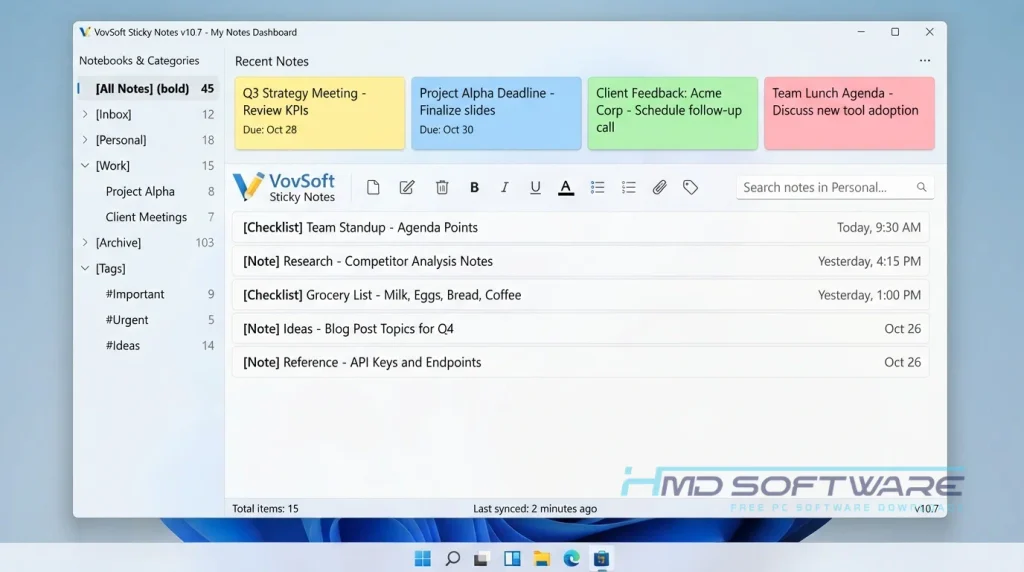
VovSoft Sticky Notes is a digital sticky notes app developed by VovSoft that helps users create desktop reminders. Built explicitly for Windows, this lightweight desktop notes app functions as an offline utility. It is sold under a commercial license, with a permanent free trial available to test before you buy a license.
What Does VovSoft Sticky Notes Do?
This app lets you pin bright, customizable notes directly onto your computer screen so you never miss a deadline. Instead of opening a heavy word processor to write down a phone number or a tracking code, you click the system tray icon and start typing.
I use it constantly to set up recurring reminders for daily meetings or to drag image files straight into a note for visual reference.
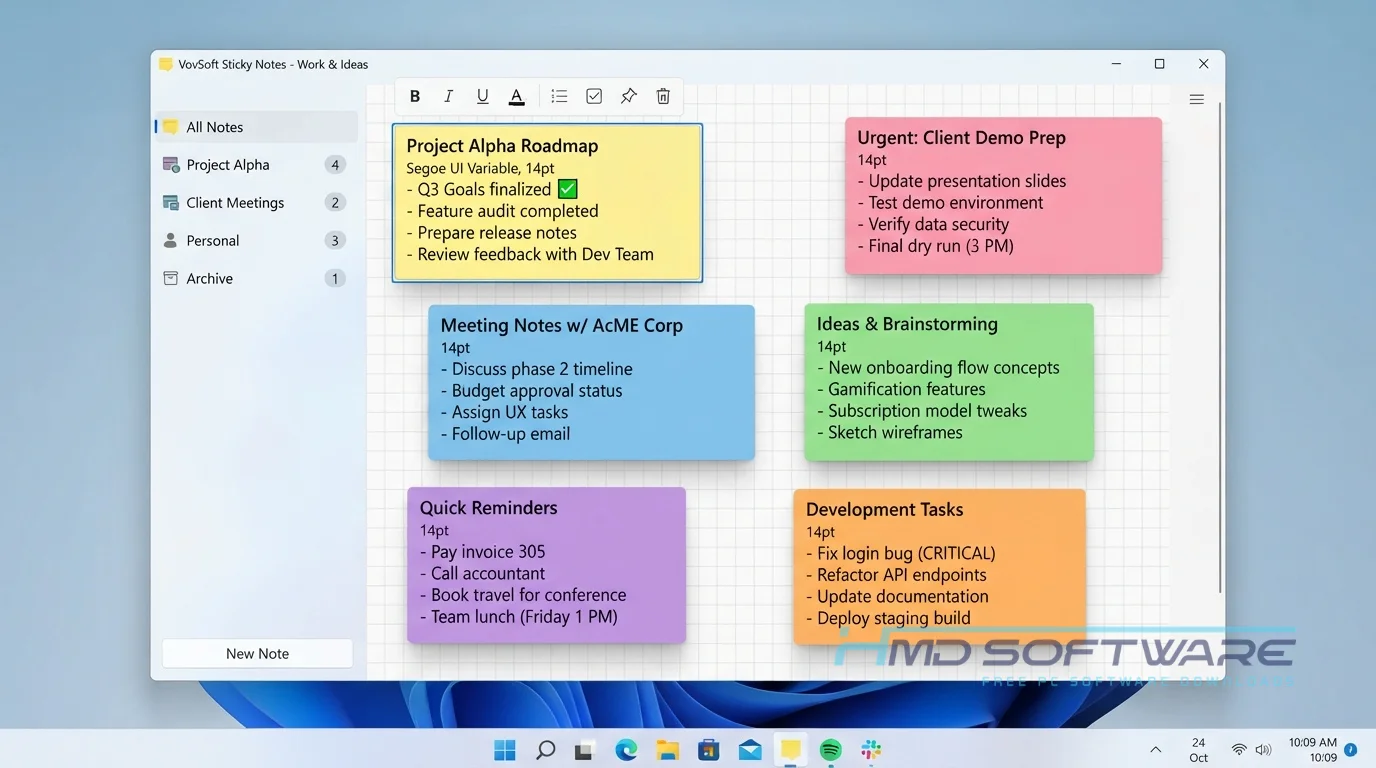
If you have a chaotic workday, the cascade arrangement option instantly snaps your scattered notes into a neat diagonal stack. It ensures your most critical thoughts stay front and center while you work, saving you from digging through old notebooks.
How Does VovSoft Sticky Notes Work?
The software lives entirely in your system tray and activates with a quick shortcut or double-click. It is built for busy professionals, students, and anyone who prefers keeping their personal notes private. The main problem it solves is the distraction and lag of massive, cloud-based note apps.
You don’t need to log in to an account because this tool stores notes offline. Everything you type or paste is saved to a small database file on your computer, so your data stays on your device.
Key Features of VovSoft Sticky Notes
- Local Note Storage: Your data stays on your physical computer hard drive, keeping your private schedules completely offline and secure.
- Smart Reminders: You can build quick alarms that flash on your screen to remind you about upcoming tasks or daily habits.
- Media Support: The editor lets you paste images into notes or quickly drag and drop text files right onto a reminder window.
- Portable Edition: You can download a VovSoft Sticky Notes portable version that runs straight from a USB drive without touching the system registry.
- Multi-Screen Support: This means the app can easily handle multiple monitors. You can put reminders on all of your screens. It will work just fine.
- Display Layouts: Use the built-in diagonal arrangement tool to instantly organize 50 different notes into a clean, readable layout.
Pros and Cons
Pros
- It uses almost zero system resources and opens instantly.
- Total data privacy since nothing is uploaded to an external server.
- The multiple monitor support works without scaling issues on Windows 11.
- Setting up recurring alerts takes only three clicks.
Cons
- The user interface looks old-fashioned compared to modern web apps.
- You cannot sync notes to your smartphone because there is no mobile application.
- The free trial displays a reminder screen asking you to upgrade.
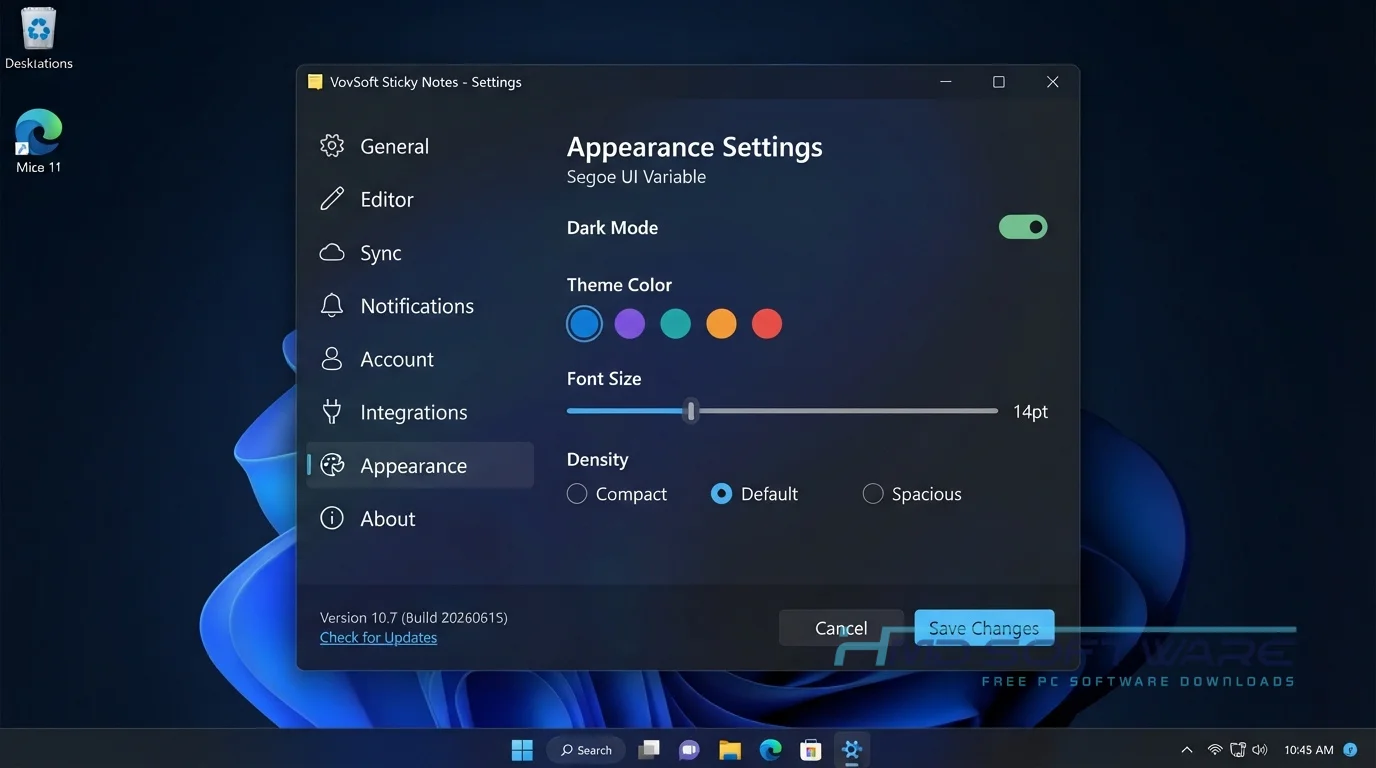
How to Download VovSoft Sticky Notes for Windows
Getting the setup file onto your machine is very straightforward if you use a clean source.
- Decide if you want the standard installer edition or the standalone portable version.
- You can find a safe, verified download link on HMD Software, a reliable platform for PC software downloads.
- Click the direct link to save the small installer package to your local storage.
- The file size is tiny, usually under 10 MB, so the download finishes in just a few seconds.
- As a general habit, right-click the file and run a quick security scan before launching it.
How To Install VovSoft Sticky Notes Step by Step
- Go to your downloads folder and open the newly downloaded setup file.
- Choose your preferred language and click Next on the setup screen.
- Review the license agreement terms and tick the box to accept them.
- Select the target folder location on your C: drive where the files should live.
- Check the option to create a desktop icon if you want a quick shortcut.
- Click the install button, wait for the progress bar to finish, then hit launch.
System Requirements
You do not need a fast computer to use this program. This program works on old laptops and basic office computers. It does not slow them down. Before downloading VovSoft Sticky Notes 2026, check the system requirements to ensure your computer is compatible.
| Requirement | Minimum | Recommended |
| Operating System | Windows XP / 7 / 8 (32-bit) | Windows 10 / Windows 11 (64-bit) |
| RAM | 512 MB | 2 GB or more |
| Storage | 20 MB free space | 100 MB free space |
| Processor | 1 GHz Single-Core | 2 GHz Dual-Core or faster |
| Internet | Not required for use | Required briefly for registration |
| Graphics | Standard integrated video | Standard integrated video |
Is VovSoft Sticky Notes Safe To Download?
Yes, it’s safe to download and use on your PC. The official software doesn’t include junkware, toolbars, or harmful scripts. Since everything is processed locally, your notes are never shared with anyone else.
Just stay away from cracked versions or unofficial activation key generators on weird forums. Those files almost always carry hidden tracking cookies or Trojans that compromise your system security.
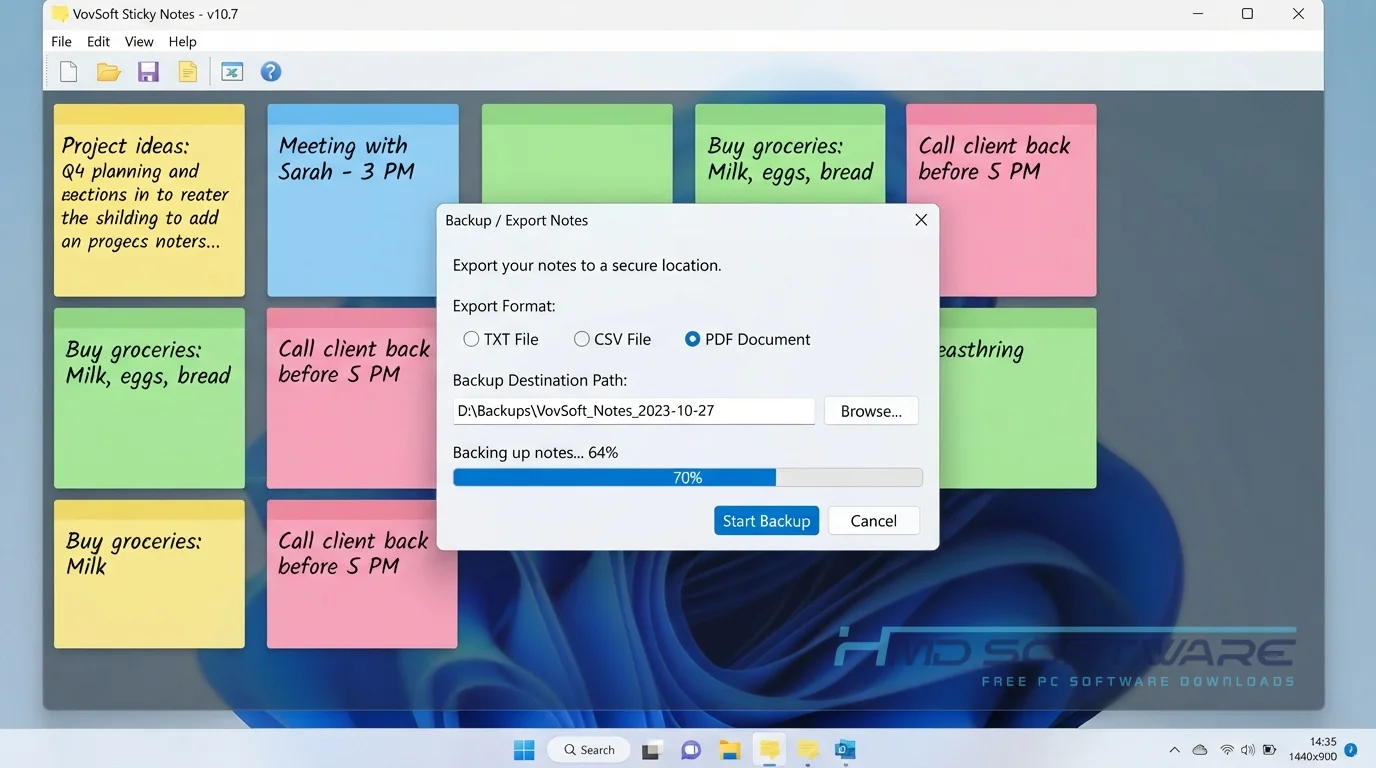
Best Alternatives To VovSoft Sticky Notes
- Microsoft Sticky Notes: This comes built into Windows and is great for syncing your notes to a phone, though it requires a Microsoft account.
- Simple Sticky Notes: A highly popular free option that gives you a lot of colorful theme choices but lacks some advanced alarm settings.
- Stickies (Zhorn Software): An incredibly deep, old-school tool for power users who want to lock notes to specific applications or websites.
Conclusion
VovSoft Sticky Notes 10.7 is easily one of the best ways to clean up your workspace and keep track of daily goals. It skips the annoying cloud setups and focuses purely on speed, privacy, and simplicity. If you want an honest, no-nonsense desktop reminder app that works, go ahead and grab the free trial download to see how much it helps your daily routine.
Frequently Asked Questions
Is VovSoft Sticky Notes free or paid?
The software operates on a free trial basis. You can download and use the app to see if you like the layout, but a reminder window will pop up occasionally asking you to upgrade. If you decide to keep it permanently, the VovSoft Sticky Notes lifetime license price is a one-time payment of $19.00 through PayPro Global, which removes all limitations.
Does VovSoft Sticky Notes work on Windows 11?
Yes, it works beautifully on Windows 11. The developer updates the code regularly so the windows match the modern rounded corners and snap layouts of the latest OS. It also handles advanced display scaling, so your text won’t look blurry or tiny on a high-resolution 4K monitor at your desk.
What is the latest version of VovSoft Sticky Notes?
The latest version of VovSoft Sticky Notes is 10.7. It came out in the 2026 update. This version of VovSoft Sticky Notes fixes layout issues when you drag text from one monitor to another. It also makes it better to save pictures.
If you are using a version of VovSoft Sticky Notes, you should update it. When you update VovSoft Sticky Notes, your text will look clearer.
How to recover lost sticky notes in VovSoft?
If a note vanishes, don’t panic. Because the app stores data locally, your text is rarely gone forever. Right-click the icon in your system tray, open the main Options panel, and look for the backup configuration folder.
The app regularly saves automatic text backups directly to your local AppData directory, allowing you to easily restore your reminders.
Latest Posts:
- Microsoft Office 365 Enterprise Free Download: Full Offline Setup
- Macrium Reflect Rescue Free Download: Bootable WinPE ISO Setup
- JPLAY Femto Free Download: Bit-Perfect Audiophile PC Player
- Milestone XProtect Corporate 2025 Free Download: VMS Setup for PC
- Microsoft Office 2010 Pro Plus Free Download: Full PC Setup